Mermaid Slideshow - Turn Mermaid Diagrams into a Full-Screen Slideshow
Built a Mermaid Slideshow Extension: Present Your Diagrams Distraction-Free
I built Mermaid Slideshow - a VS Code extension that turns Mermaid diagrams into a distraction-free slideshow.
It also works with Cursor, Windsurf, Zed, amongst others.
I built it because VS Code's built-in markdown preview renders diagrams inline alongside text - small, non-interactive, and buried in content. I needed a way to pull diagrams out and present each one full-screen, so you can actually read them during reviews and presentations.
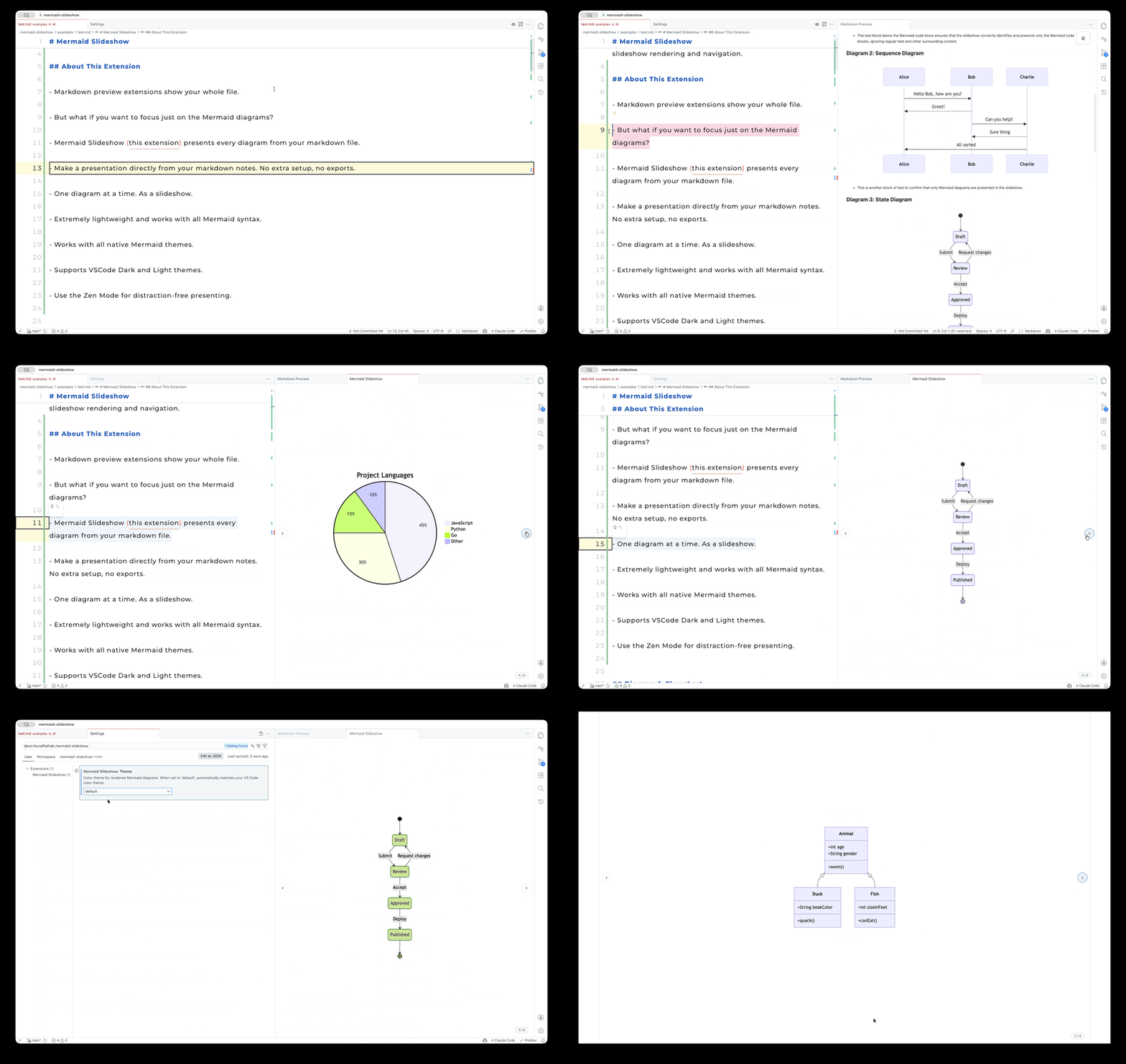
How Mermaid Slideshow gives you:
- ✅ Full-Screen Presentation - Each diagram gets its own full-panel slide
- ✅ Distraction-Free - No surrounding markdown, no tiny inline renders, no clutter
- ✅ Live Preview - Updates instantly as you edit the source
- ✅ Easy Navigation - Arrow keys, mouse scroll, or click navigation
- ✅ Both Syntaxes - GitHub-style (```) and Azure DevOps-style (:::) support
- ✅ Secure - Content Security Policy with nonce-based script execution
Why This Extension?
VS Code's built-in markdown preview renders diagrams inline alongside text. Mermaid Slideshow pulls your diagrams out and presents each one full-screen.
Use cases:
- Review architecture docs - step through complex diagrams one at a time without scrolling past walls of text
- Present in meetings - navigate with arrow keys or mouse scroll like a slide deck, right inside VS Code
- Iterate on diagrams - live preview updates instantly as you edit the source, keeping you in flow
Installation & Usage
Install:
- Open VS Code (or any VS Code-based editor)
- Go to Extensions
- Search for "Mermaid Slideshow" or
KunalPathak.mermaid-slideshow - Click Install
Usage:
- Open any markdown file containing Mermaid diagram blocks
- Click the presentation icon in the editor title bar (or use Command Palette:
Mermaid: Show Mermaid Slideshow) - Navigate slides with:
- Left/Right arrow keys
- Up/Down arrow keys
- Mouse scroll wheel
- Click the
‹›navigation arrows
The slide counter in the bottom-right shows your position (e.g., "2 / 5").
Configuration
Open VS Code Settings (Cmd+, on macOS, Ctrl+, on Windows/Linux) and search for "Mermaid Slideshow".
| Setting | Options | Default | Description |
|---|---|---|---|
mermaidSlideshow.theme |
default, dark, forest, neutral |
default |
Color theme for rendered diagrams |
Available themes:
- default - Clean and simple
- dark - Dark background with light text, matches dark VS Code themes
- forest - Green-toned, nature-inspired palette
- neutral - Grayscale, high-contrast, print-friendly
Changing the theme takes effect immediately on the open slideshow.
Where to Find It
Head over to my GitHub repo to check out the code, or install it directly from the VS Code Marketplace.
Just open your Markdown file with Mermaid diagrams, click the presentation icon, and you're presenting - no config, no nonsense.