Mermaid Slideshow: Present Markdown Diagrams Distraction-Free
Mermaid turns text into diagrams that can live beside code in a Markdown file. That makes diagrams easy to review and version, but an inline diagram can be too small to present in a meeting.
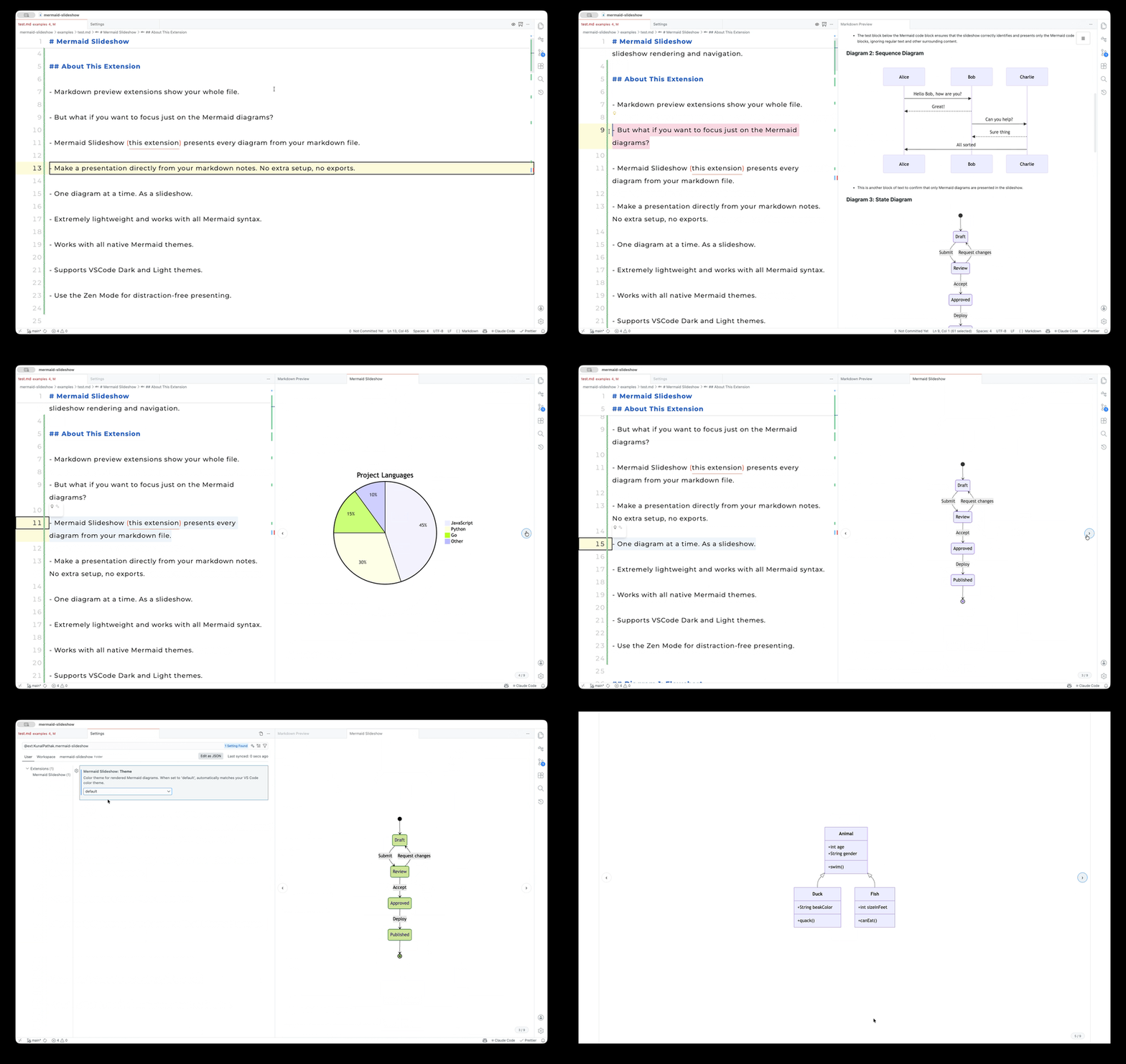
I built Mermaid Slideshow, a VS Code extension that finds Mermaid blocks and presents each one as a full-screen slide. This post explains how the extension works, how to navigate a deck, and which theme setting controls the rendered diagrams.
Navigate this post
Core Technical Problem
Markdown documentation is the standard for technical specifications, RFCs, and architecture decision records. When teams document complex systems, they rely on Mermaid diagram blocks to illustrate data pipelines, component interactions, and state machines directly in text files.
However, standard Markdown viewers display these diagrams inline between paragraphs of prose. During architectural design reviews, sprint planning, or engineering presentations, inline rendering presents several friction points:
- Constrained Viewports: Diagrams scale down to fit the text column width, making labels and node details illegible on standard monitors.
- Context Switching: Presenters must continuously scroll past walls of text to navigate between sequential system diagrams.
- Static Artifacts: Inline previews do not offer dedicated presentation controls such as full-screen zooming, slide counter indexing, or focused slide transitions.
I created the Mermaid Slideshow extension to solve this issue by turning any Markdown file containing Mermaid blocks into an interactive slide deck directly inside your editor.
Editor Compatibility
Mermaid Slideshow targets the VS Code extension API. A VS Code-derived editor may support it, but compatibility depends on that editor's API and extension-marketplace support.
Key Features
Mermaid Slideshow isolates diagram blocks and elevates them into a dedicated presentation window.
-
Full-Screen Canvas
Extracts inline diagrams into dedicated high-resolution presentation slides. -
Distraction-Free Focus
Hides surrounding Markdown prose, headers, and editor chrome during reviews. -
Live Updates
Updates slide visuals when you edit the underlying Mermaid syntax. -
Keyboard Navigation
Supports arrow keys, mouse scroll, and touch controls for slide transition.
Supported Syntax Formats
Mermaid Slideshow automatically parses both standard GitHub-style fenced code blocks (using triple backticks ```mermaid) and Azure DevOps-style block syntax (using ::: mermaid blocks).
Installation and Usage
Getting started requires no complex configuration files or external CLI dependencies.
Installation Steps
- Launch VS Code or your preferred compatible code editor.
- Navigate to the Extensions view using
++cmd+shift+x++(macOS) or++ctrl+shift+x++(Windows/Linux). - Search for
Mermaid Slideshowor the publisher identifierKunalPathak.mermaid-slideshow. - Select Install.
Running a Presentation
- Open any Markdown (
.md) file containing one or more Mermaid diagram blocks. - Click the presentation slide icon in the top-right editor action bar, or open the Command Palette (
++cmd+shift+p++/++ctrl+shift+p++) and executeMermaid: Show Mermaid Slideshow. - Step through your presentation slides using arrow keys (
++left-arrow++/++right-arrow++), mouse wheel scrolling, or the on-screen navigation controls.
The lower-right corner displays an active slide counter (such as 2 / 5), helping you maintain pacing during technical reviews.
---
title: "Mermaid Slideshow Workflow"
---
flowchart TB
    accTitle: Mermaid Slideshow workflow
    accDescr: The extension finds Mermaid blocks in the open Markdown file, renders them as full-screen slides, and enables keyboard navigation.
    A["Open Markdown Document"] --> B["Detect Mermaid Blocks"]
    B --> C["Render Full-Screen Slide Deck"]
    C --> D["Navigate with Keyboard Controls"]
The sequence above shows how the extension parses raw Markdown input into an interactive deck without requiring intermediate build steps.
Keyboard Navigation Shortcuts
++right-arrow++or++down-arrow++: Advance to next diagram slide++left-arrow++or++up-arrow++: Return to previous diagram slide++escape++: Exit full-screen presentation mode
Configuration Options
You can customize the rendering appearance by opening VS Code Settings (++cmd+comma++ on macOS or ++ctrl+comma++ on Windows/Linux) and searching for Mermaid Slideshow.
| Setting Option | Supported Values | Default Value | Description |
|---|---|---|---|
mermaidSlideshow.theme |
default, dark, forest, neutral |
default |
Sets visual color palette for rendered diagrams |
The extension applies theme adjustments immediately across all open slideshow windows without requiring an editor restart.
Theme Descriptions:
- default: Clean light theme with balanced contrast for daytime reviews.
- dark: High-contrast dark theme designed to match dark editor windows.
- forest: Soft green-toned palette ideal for organic component grouping.
- neutral: Grayscale palette tailored for high-contrast presentation screens and printing.
Where to Find It
Mermaid Slideshow is open source and freely available on community registries:
- Install directly from the VS Code Marketplace.
- View the source code, file issues, or contribute on the GitHub Repository.
Conclusion
Technical diagrams should clarify architectural decisions, not get buried inside document text. By pulling Mermaid diagrams out of Markdown files and presenting them on a full-screen canvas, Mermaid Slideshow enables focused design discussions directly inside your development workspace.
References and further reading
Open the complete reference catalog
Primary Sources
- Mermaid Slideshow on VS Code Marketplace
- Mermaid Slideshow GitHub Repository
- Mermaid.js Official Documentation
Related Site Guides
- Markdown Presentation Tool - Present Markdown documents with customization
- Lightweight Markdown Preview - Fast inline document rendering guide